Resume PDF Format: What Every Job Seeker Must Know

Resume PDF format is a portable document file that locks your resume’s layout, fonts, and content exactly as designed, regardless of the device, operating system, or software used to open it. This makes it the dominant choice for job applications in 2026. Unlike Microsoft Word documents, which can reflow text or shift formatting when opened on a different version of Office, a PDF “freezes” your design so every recruiter sees precisely what you intended. Tools like Google Docs, Microsoft Word, and dedicated resume builders all support direct PDF export, making the format accessible to anyone. Understanding why PDF works, and how to create one correctly, is the difference between a resume that gets read and one that gets rejected before a human ever sees it.
What is resume PDF format and why does it matter?
Resume PDF format refers to saving your resume as a Portable Document Format file, a standard developed by Adobe that renders documents identically across platforms. PDF resumes preserve layout and are non-editable, which protects your original formatting and prevents recruiters from accidentally or intentionally altering your content. That security feature is more valuable than most job seekers realize. It means your carefully chosen fonts, spacing, and section order arrive intact every single time.
The format also eliminates virus risks and works on both Macs and PCs, making it broadly compatible with employers across industries and geographies. Applicant tracking systems, the software that screens resumes before a recruiter reads them, handle text-based PDFs well on modern platforms. The critical qualifier is “text-based.” A PDF created by scanning a paper resume or exporting as an image is invisible to ATS software, which is a fast track to automatic rejection. Knowing this distinction is the single most important piece of resume format knowledge you can have.

The resume formatting principles that govern PDF resumes are straightforward: clean structure, readable fonts, and machine-parseable text. Get those three right, and your PDF resume becomes a reliable asset rather than a liability.
How to create a professional PDF resume
Creating an ATS-compatible PDF resume is a process with a specific sequence. Skipping steps, particularly the verification step at the end, is where most candidates go wrong.
-
Draft your resume in a word processor or resume builder. Microsoft Word and Google Docs are the most common starting points. Both support direct PDF export without third-party conversion tools, which preserves text integrity better than printing to PDF through a browser.
-
Switch to Print Layout view before exporting. Unexpected layout shifts can occur at page breaks when saving from Word or Google Docs. Switching to Print Layout view before you export lets you catch text that gets cut off or awkward white spaces that appear only in the final file, not in the editing view.
-
Export directly to PDF. In Microsoft Word, go to File > Save As and select PDF from the format dropdown. In Google Docs, go to File > Download > PDF Document. Both methods produce text-based PDFs. Avoid using the “Print to PDF” option in your browser unless you are using a browser-based resume builder specifically designed for it, since those tools use CSS print rules to produce clean output.
-
Use a dedicated resume builder for guaranteed ATS output. Modern resume builders provide direct-to-PDF export features that produce selectable, machine-readable text compatible with virtually all modern ATS software. Platforms like Easy-cv generate PDFs using structured templates that are already optimized for parsing, removing the guesswork entirely.
-
Verify your PDF is text-selectable. Open the exported file and try to highlight or copy a word. If you can select text, the PDF is machine-readable. If the cursor behaves like you are clicking on an image, the file is image-based and will fail ATS screening. This test takes ten seconds and should be non-negotiable before every submission.
Pro Tip: Keep both a Word and a PDF version of your resume saved and ready. Some older ATS platforms still prefer Word files, and a small number of employers explicitly request them. Having both versions means you never have to scramble at the last minute.
PDF vs. other resume formats: which one should you use?
The choice between resume format types comes down to where you are applying and what the employer’s system requires. PDF wins in most scenarios, but the exceptions matter.
Advantages of PDF resumes:
- Layout and design are preserved exactly across every device and operating system
- The file is non-editable, protecting your content from accidental or unauthorized changes
- PDFs eliminate virus risks associated with macro-enabled Word files
- Text-based PDFs are compatible with the vast majority of modern ATS platforms
- File size is typically small, making email attachments fast and reliable
When Word documents are the better choice:
- The job posting explicitly requests a .doc or .docx file
- You are applying through an older ATS that is known to have PDF parsing issues
- A recruiter or hiring manager asks you to send an editable version for internal formatting
The comparison table below summarizes the practical differences across the three most common resume file formats.
| Format | Layout stability | ATS compatibility | Editability | Best use case |
|---|---|---|---|---|
| PDF (text-based) | Excellent | High on modern ATS | Non-editable | Most job applications |
| Word (.docx) | Variable by version | High on older ATS | Fully editable | When explicitly requested |
| Plain text (.txt) | None | Universal | Fully editable | Online application forms |

Sending a Word document risks layout issues due to software version differences between your computer and the recruiter’s. A PDF removes that variable entirely. Plain text files have no formatting at all, which makes them useful for pasting into web forms but unsuitable as standalone resume attachments.
The nuanced reality is that most modern ATS handle PDFs well when the file is text-based. The persistent myth that “ATS can’t read PDFs” applies only to image-based or heavily designed PDFs, not to clean, text-exported ones.
Common mistakes that break ATS compatibility
The gap between a PDF resume that passes ATS screening and one that fails often comes down to a handful of avoidable errors. ATS software may not correctly parse PDFs created from images or with complex designs, so simplicity is a strategic choice, not a creative limitation.
Formatting mistakes to avoid:
- Image-based PDFs: Scanning a paper resume or exporting as an image creates a file ATS cannot read. Always verify text is selectable before submitting.
- Non-standard fonts: Stick to fonts like Arial, Calibri, Georgia, or Times New Roman. Decorative fonts may not render correctly on all systems.
- Text boxes and graphics: ATS parsers frequently skip content inside text boxes, tables used for layout, or graphic elements. Put all critical information in the main text body.
- Headers and footers for key content: Some ATS systems ignore content placed in document headers or footers. Keep your contact information in the main body of the document.
- Font sizes outside the readable range: Use 10 to 12 points for body text and 14 to 16 points for your name and section headers. Anything smaller becomes difficult to read in print.
Best practices that improve results:
Use consistent margins of at least half an inch on all sides. Left-align your body text, since centered or right-aligned text is harder for parsers to sequence correctly. Include clear section headers like “Work Experience,” “Education,” and “Skills” so ATS software can categorize your content accurately. Incorporate keywords from the job description naturally throughout your resume, since ATS systems score resumes by keyword match before a human reviews them.
Pro Tip: Before submitting, run your PDF through a free ATS checker. Tools like Jobscan compare your resume against a specific job description and flag missing keywords or formatting issues. This takes five minutes and can meaningfully improve your screening pass rate.
The resume checklist approach used by professional resume writers covers all of these points systematically. Working through a checklist before each application submission is more reliable than relying on memory.
What good PDF resume examples actually look like
A well-structured PDF resume follows a predictable layout that serves both human readers and ATS software. The sections below are present in virtually every effective resume, regardless of industry or experience level.
- Contact information: Full name, phone number, professional email address, LinkedIn URL, and city or region. No full street address is needed.
- Professional summary: Two to three sentences that position you for the specific role. This section should change with each application.
- Skills: A concise list of hard and soft skills relevant to the target job. Keep it scannable.
- Work experience: Listed in reverse chronological order with employer name, job title, dates, and bullet points describing accomplishments with measurable results.
- Education: Degree, institution, and graduation year. Add certifications or relevant coursework if they strengthen your candidacy.
The three main resume format types each organize this content differently. Chronological resumes lead with work history and suit candidates with consistent career progression. Functional resumes lead with skills and are used by career changers or those with employment gaps. Combination resumes blend both approaches and work well for mid-career professionals pivoting to a new field.
Resume length follows clear guidelines: one page for under ten years of experience, two pages for senior-level professionals. ATS scanners and recruiters both respond better to concise, achievement-focused content than to exhaustive career histories.
For PDF resume examples and templates, Easy-cv offers a library of ATS-friendly designs with live preview, so you see exactly how the exported PDF will look before you download it. The CV formatting guide for 2026 covers visual design rules that support both ATS parsing and recruiter readability in detail.
Key takeaways
A text-based PDF resume is the most reliable format for job applications because it preserves your layout, protects your content, and passes ATS screening on modern recruitment platforms.
| Point | Details |
|---|---|
| PDF preserves layout | Your design arrives intact on every device, eliminating formatting surprises for recruiters. |
| Text-based is non-negotiable | Always verify your PDF text is selectable before submitting to avoid ATS rejection. |
| Export directly from your tool | Use Word’s Save As PDF or Google Docs’ Download as PDF to produce machine-readable files. |
| Simplicity beats creativity | Standard fonts, clean margins, and no text boxes give ATS software the best chance to parse your resume correctly. |
| Keep both formats ready | Maintain a Word version alongside your PDF to meet the occasional employer who requests an editable file. |
Why PDF format is the detail most candidates overlook
I have reviewed hundreds of resumes over the years, and the formatting errors I see most often are not typos or weak bullet points. They are structural. A candidate spends hours crafting strong content, then submits it as an image-based PDF or a Word file that renders differently on the recruiter’s machine. The content is strong. The file format undoes it.
The part that frustrates me most is how fixable this is. Checking whether your PDF text is selectable takes ten seconds. Switching to Print Layout view before exporting takes one click. These are not technical skills. They are habits, and the candidates who build them early have a measurable advantage over those who do not.
There is also a subtler point worth making. A clean, well-formatted PDF signals something about you before a recruiter reads a single word. It says you understand professional standards, you pay attention to details, and you respect the reader’s time. A garbled Word document or an image-based PDF says the opposite, even if unintentionally.
My honest advice: treat your PDF resume as a product you are shipping to a client. Test it before it goes out. Open it on a different device. Try to copy text from it. Send it to a friend and ask how it looks on their screen. The job board application process is competitive enough without losing ground to a file format error.
— Andras
Build your PDF resume faster with Easy-cv
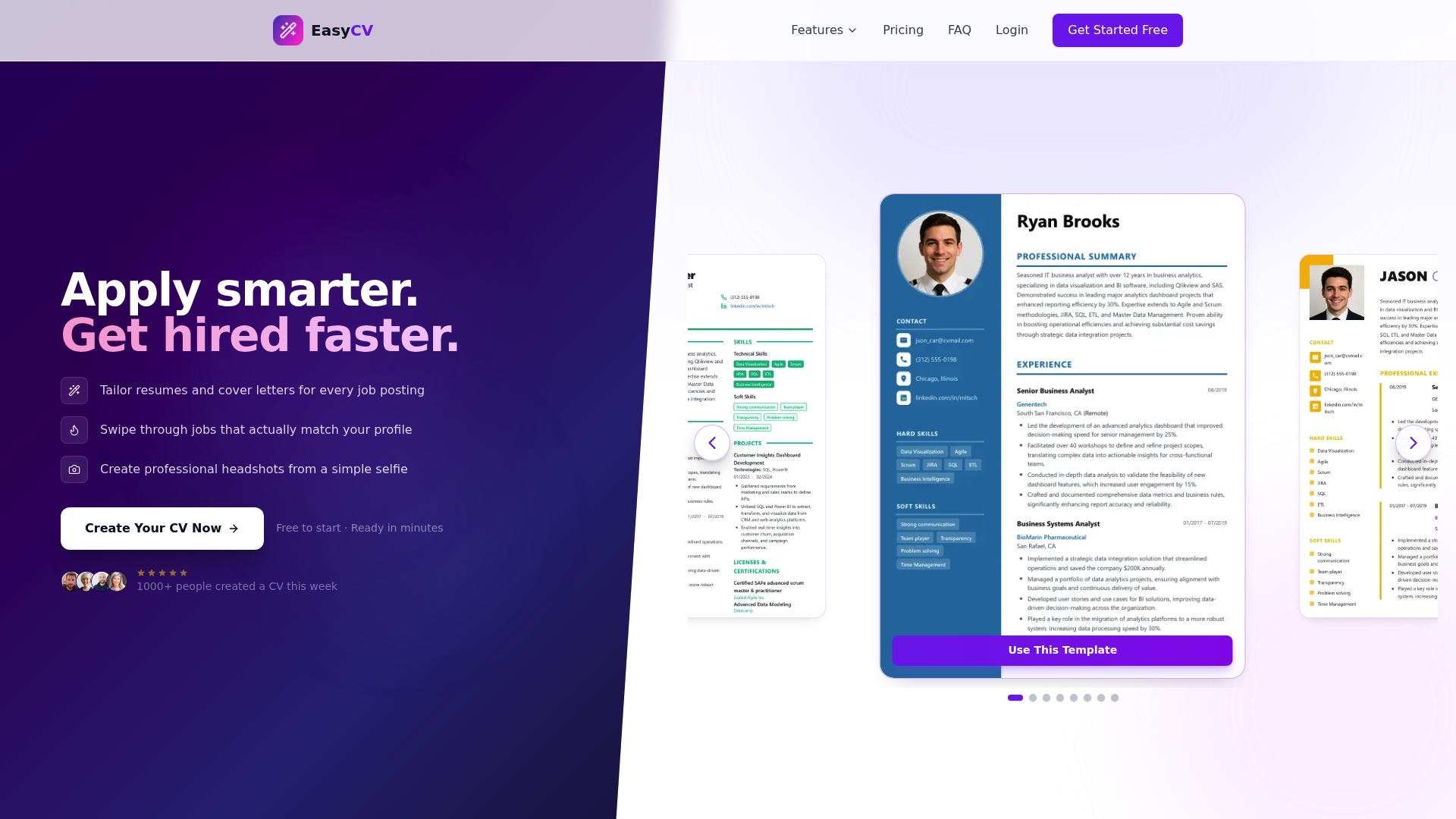
Easy-cv gives you a purpose-built environment for creating ATS-optimized PDF resumes without the trial and error. The AI-powered resume builder generates text-based PDFs directly from professionally designed templates, with a live preview so you see exactly what recruiters will receive. Every template is built to pass modern ATS screening, and the AI writing assistant helps you sharpen your content for each specific role. Whether you are applying for your first job or your fifteenth, Easy-cv’s full feature set handles the technical side of resume formatting so you can focus on the application itself. Free and premium plans are both available.
FAQ
What is a resume PDF format?
A resume PDF format is a Portable Document Format file that preserves your resume’s layout, fonts, and content identically across all devices and operating systems. It is the most widely accepted file format for job applications because it is non-editable and broadly compatible with modern ATS software.
Is PDF or Word better for a resume?
PDF is better for most job applications because it locks in your formatting and works consistently across devices. Word is preferable only when the employer explicitly requests an editable file or when applying through an older ATS known to have PDF parsing issues.
How do I make sure my PDF resume is ATS-compatible?
Export your resume directly from Microsoft Word or Google Docs using the built-in PDF export function, then open the file and verify you can highlight and copy text. If text is selectable, the PDF is machine-readable and ATS-compatible. Avoid image-based PDFs, decorative fonts, and text boxes.
What fonts and sizes work best in a PDF resume?
Use standard fonts like Arial, Calibri, Georgia, or Times New Roman at 10 to 12 points for body text and 14 to 16 points for your name and section headers. Non-standard fonts may not render correctly on all systems and can cause ATS parsing errors.
Should I keep a Word version of my resume as well?
Yes. Keeping both a Word and a PDF version of your resume is practical because some older ATS platforms and a small number of employers still request editable files. Having both ready means you can respond to any format requirement without reformatting from scratch.