Applicants: Choose an ATS Safe DOCX Resume Template in One Sitting
The best resume template is ATS-friendly and customizable: a clean, single-column layout you can download as an editable DOCX master and export as a clean, text-based PDF for every application. Everything else, the color scheme, the icon set, the font pairing, matters far less than whether a hiring system can read it and whether you actually own the file. The rest of this guide covers categories, selection criteria, export rules, and a short workflow to get you there.
TL;DR:
- Use plain, single-column ATS-friendly templates with clearly labeled sections to maximize parser compatibility and avoid design elements that may cause misreading.
- Confirm that the chosen template offers both DOCX and PDF export options without paywalls or watermarks before beginning customization.
- Keep your master resume in an editable DOCX file and export a text-based PDF for each application to protect your work and facilitate easy tailoring.
- Match your resume style to the industry and career stage, opting for simple formats like reverse-chronological for consistent careers or skills-focused for career changers.
- Test the exported PDF by copying its text into a plain editor to ensure proper parsing and readability before submitting any application.
Table of Contents
- Top Resume Template Categories and When to Use Each
- How Do You Choose the Right Resume Template?
- File Formats and Export Rules That Protect Your Work
- ATS-Friendly Design Rules and a Copy-Ready Checklist
- Which Resume Format Fits Your Career Story?
- Pick, Customize, Export, and Test a Template in One Sitting
- Why EasyCV Fits This Workflow
- What I’d Tell a Friend Choosing a Template Tonight
- Try EasyCV’s ATS-Friendly Templates and AI Tailoring
- Sources
Top Resume Template Categories and When to Use Each
Templates fall into a handful of families, and picking the right one starts with matching the style to your industry, not your taste.
- Professional or corporate: conservative layouts with clear headers, best for finance, law, healthcare, and government roles where reviewers expect a traditional format.
- Modern or minimalist: tighter margins, sans-serif fonts, and more white space, common in tech and startup applications.
- Creative or portfolio-forward: color blocks, sidebars, and graphic elements suited to design and marketing, but risky for ATS parsing unless you check the export carefully.
- Two-column and compact layouts: useful for senior candidates with 15+ years of history who need to fit more without shrinking the font past readability.
- ATS-first templates: plain, single-column, with clearly labeled sections. These sacrifice visual flair for near-universal parser compatibility.
If you’re not sure which category fits, default to ATS-first. You can always add subtle style once you know the layout survives a parser.
How Do You Choose the Right Resume Template?
Run through five criteria before you commit to any design, in this order:
- Job type and industry. A creative director’s resume can carry more visual weight than a compliance officer’s. Match formality to the field.
- Career stage. Early-career resumes benefit from single-page, skills-forward layouts. Senior candidates often need two-column or compact designs to hold more content without looking cramped.
- ATS risk tolerance. If you’re applying through large corporate portals, prioritize plain layouts. If you’re networking directly with a hiring manager, some visual flexibility is fine.
- Required file types. Confirm the employer wants DOCX or PDF before you build. Some systems still request Word files specifically.
- Content length. Choose a template with enough room for your actual experience, not one that forces you to cut relevant history to fit a design.
Then check ownership and export terms. Does the platform give you a DOCX master? Is there a watermark on the free download? Is there a download limit per month? A buying guide for resume templates recommends treating every template as an editing workflow first, a design choice second.
Three red flags mean you should abandon a template immediately: exports locked behind a paywall you didn’t expect, heavy graphics replacing actual text content, and section labels so unusual (like “My Journey” instead of “Experience”) that a parser or a recruiter skimming quickly won’t recognize them.
Pro Tip: Before customizing anything, download a blank test file first. If the export is watermarked, capped, or missing, you just saved yourself hours.
File Formats and Export Rules That Protect Your Work
Keep an editable DOCX master and export a fresh, text-based PDF for each application. This isn’t just a formatting habit. It’s how you protect your work from platform lock-in and preserve the ability to tailor content for the next role without starting over. Microsoft’s resume format guidance makes the same recommendation: keep the master editable, export clean.
Before you invest hours customizing any template, check for common builder limitations:
- Does the platform let you download an actual DOCX file, or only a PDF?
- Is there a paywall or watermark hidden until after you’ve built the whole document?
- Are you limited to a set number of exports per month on the free tier?
Some consumer complaints about online resume services point to exactly this problem: hours of customization followed by a paywalled download. Test the export button on day one, not after you’ve filled in ten years of work history.
Once you’ve confirmed access, your export checklist is simple: fonts embedded, text fully selectable (not flattened into an image), and no hidden headers or footers that could confuse a parser.
ATS-Friendly Design Rules and a Copy-Ready Checklist
Standard section headers, minimal tables, and readable fonts are the backbone of any template that needs to survive automated screening.
- Use conventional headers: “Experience,” “Education,” “Skills,” not creative substitutes.
- Avoid tables or text boxes for core content. Many parsers skip or scramble them.
- Stick to widely supported fonts (Arial, Calibri, Georgia) at 10 to 12 point size.
- Test parsing by copying your exported text into a plain text editor. If sentences run together or sections disappear, the layout needs fixing.
Template providers that build specifically for applicant tracking systems, including resume.io’s ATS-friendly templates, lean toward single-column designs with labeled sections precisely because that structure improves parser success rates. The design lesson holds regardless of which builder you use: simpler structure survives more systems.
Which Resume Format Fits Your Career Story?
Template style is only half the decision. The underlying resume format you choose matters just as much, and it should match your work history, not just your industry.
Reverse-chronological is the standard for anyone with a steady, linear career path. It lists your most recent job first and works down. Microsoft’s guidance on resume formats confirms this remains the most widely accepted structure for consistent work histories. When picking a template for this format, look for clear date fields and a prominent experience section, since that’s where recruiters focus first.
Functional or skills-first formats push your capabilities and projects to the top, with employment history compressed or moved lower. This suits career changers, people returning after a gap, or anyone whose most relevant experience isn’t their most recent job. Choose templates that give skills sections real visual weight, not a cramped sidebar.
Hybrid or combination formats blend both: a skills summary up top, followed by a full reverse-chronological work history. This works well if you’re pivoting industries but still have recent, relevant roles worth highlighting in detail. Look for templates with a flexible top section you can rewrite entirely per application.
Whichever format you pick, the template needs to make that structure obvious at a glance. A recruiter scanning quickly should immediately see what you want them to see first.

Pick, Customize, Export, and Test a Template in One Sitting
You can go from blank template to submission-ready resume in one focused session if you follow the steps in order.
- Choose your category and confirm export formats. Before you type a single word, verify the template offers both DOCX and PDF export, and that neither is locked behind a paywall.
- Replace placeholder text without breaking the styles. Work inside the existing formatting rather than pasting in text from another document, which often imports hidden formatting that confuses parsers.
- Tailor keywords to the specific job, then proof the PDF layout. Match language from the job description to your bullet points, then check that nothing shifted or overlapped in the exported version.
- Run a parser test and save both files. Copy the PDF text into a plain document to confirm every section reads cleanly, then save the DOCX master and the final PDF separately.
Pro Tip: Name your master file with a version number, like “Resume_Master_v3.docx.” You’ll thank yourself the third time you need to tailor it for a different role.
Why EasyCV Fits This Workflow
Some template libraries address common issues like ATS-friendly layouts, DOCX exports, and AI tools that rewrite content per job without affecting formatting. Every template gives you an editable master, not a locked preview, and the built-in job-matching tool helps you see which roles fit before you spend time tailoring.
This article reflects editorial analysis from Andras at EasyCV, drawing on how jobseekers actually use templates, where they get stuck on exports, and what recruiters skim for in the first few seconds of a resume review.

What I’d Tell a Friend Choosing a Template Tonight
Default to the boring choice: a DOCX master paired with a clean PDF export. It’s not exciting, but it survives every system you’ll encounter. A hosted builder earns its keep when it adds real value on top, AI tailoring, guided prompts, job matching, not just a prettier template. Before you send anything, paste your exported text into a plain document. If it reads cleanly, you’re done. If it doesn’t, fix it before a recruiter ever sees it.
— Andras
Try EasyCV’s ATS-Friendly Templates and AI Tailoring
Everything in this guide, the editable master, the clean PDF export, the ATS-safe layout, is exactly what EasyCV’s CV builder hands you from the first template you open. Some CV builders offer control over layout and content, along with AI writing assistants that help tailor bullet points without altering underlying formatting.
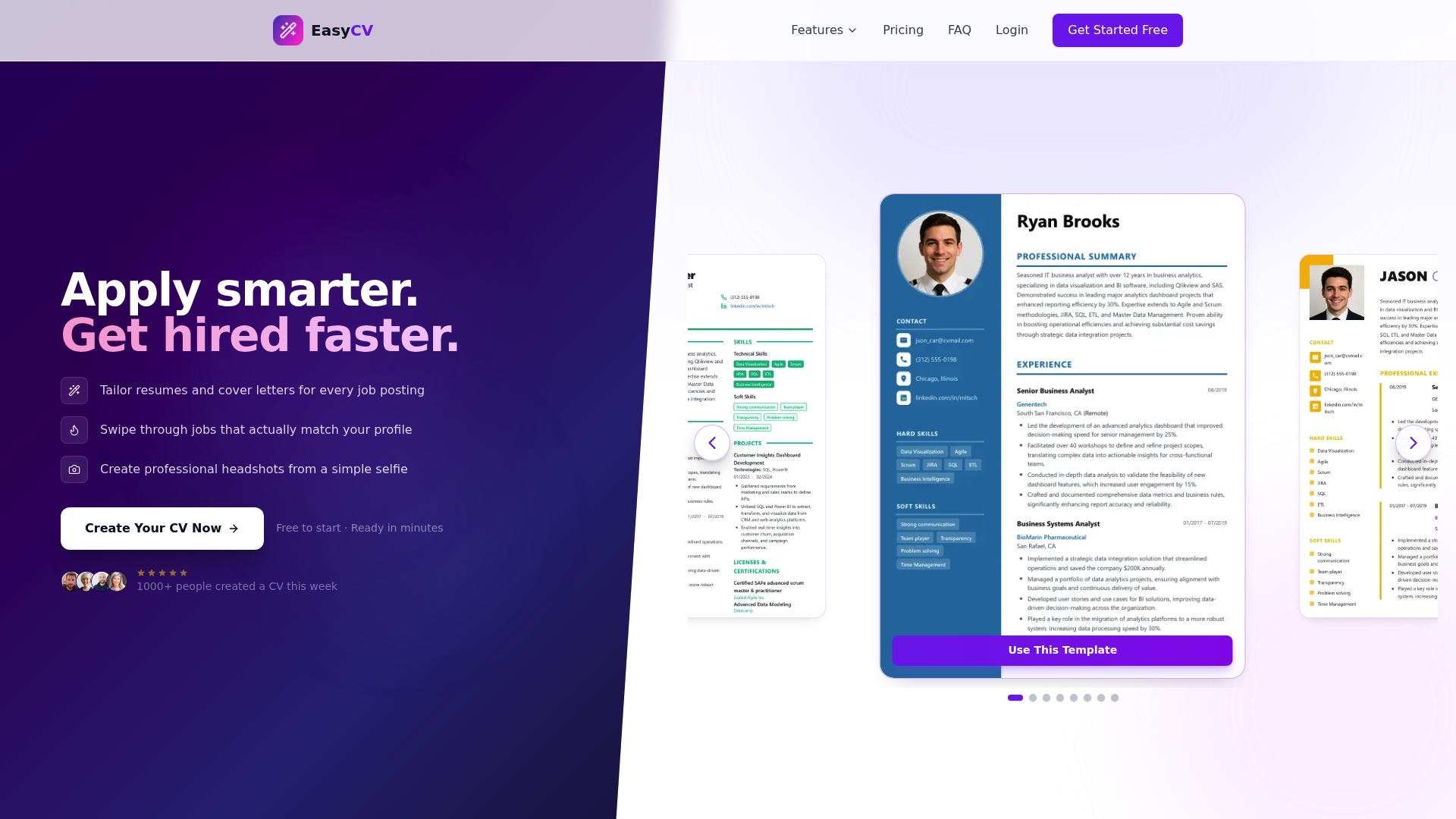
Instead of juggling separate tools for job hunting and resume building, EasyCV’s job matcher scores roles against your existing resume so you know which applications are worth your time before you tailor anything. If you’re applying across borders or in multiple languages, the CV translator keeps your formatting intact while converting your content. Open a template, swap in your details, and export your first tailored resume in one sitting.
Sources
For more on format selection, see Microsoft’s resume format breakdown and resume.io’s ATS-tested templates. Creative professionals should review Canva’s customizable resume templates before choosing a design-heavy layout, and anyone comparing platforms should read the resume template buying guide first.