How to Improve Your CV for ATS: Practical Fixes
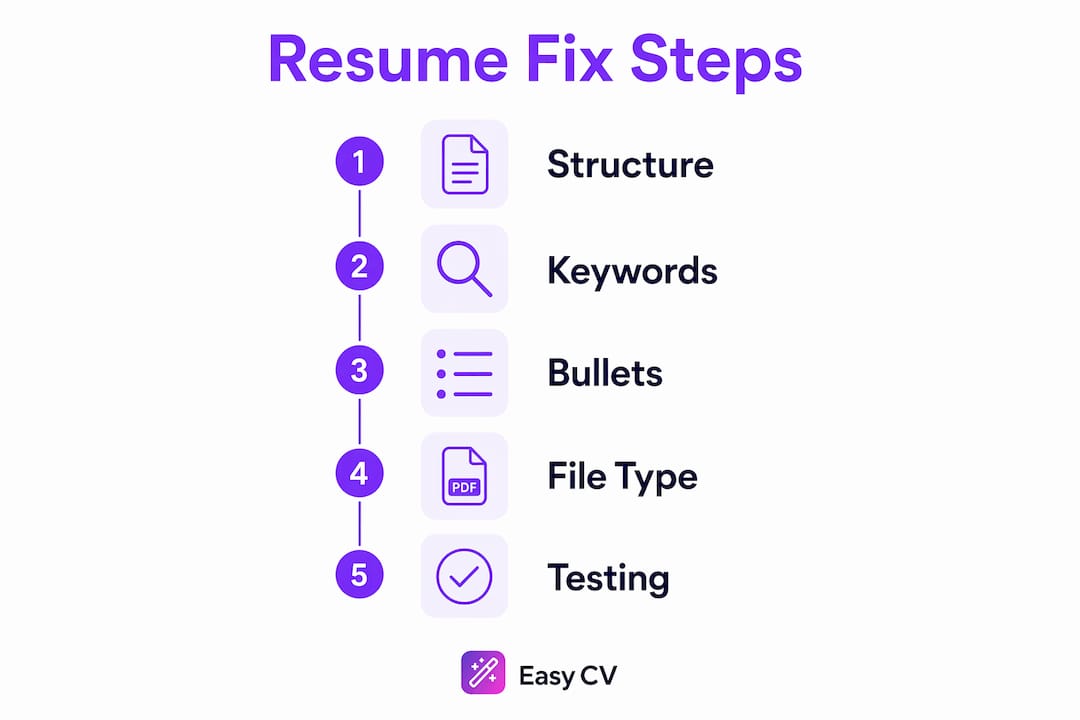
Make these five structural fixes and your CV will parse and score far better in most applicant tracking systems: single-column layout, canonical section headings, inline dates, plain bullet points, and job-specific keywords placed in your summary, skills section, and role bullets. That’s the whole game, and everything below shows you exactly how to execute each one.
Quick-start checklist:
- Switch to a single-column layout
- Use standard headings: Summary, Experience, Education, Skills
- Put contact info in the document body, not the header
- Write dates inline (Jan 2022 – Mar 2024), never in a sidebar
- Save as .docx unless the posting says otherwise
- Pull 10–15 keywords from the job description and place them in context
Table of Contents
- How does an ATS actually read your resume?
- What formatting rules actually make your CV parse correctly?
- How do you find and place the right keywords?
- DOCX or PDF: which file format should you use?
- A plain-text ATS resume template you can copy right now
- How do you test your resume and fix what’s broken?
- Why do standard section headings matter so much?
- Key Takeaways
- What actually moves the needle for real job seekers
- Easy-cv gives you ATS-ready resumes without the manual work
- Useful sources
How does an ATS actually read your resume?
An ATS doesn’t read your resume the way a recruiter does. It extracts structured fields: your name, job titles, employers, dates, and skills. Then it ranks you by how well those fields match what the hiring manager set as requirements. 90% of Fortune 500 companies use these systems, which means the majority of corporate applications never reach a human eye if the parser stumbles.
The stumbling happens fast. Most ATS parse left-to-right, top-to-bottom across the full page width. A two-column layout or a sidebar breaks that path. The parser stitches the left column and right column together into a single string, so your job title might read “Project Manager | Python | SQL | Managed a team of 12” as one garbled line. Your title disappears into the noise. Columbia Career Education flags this exact failure mode in its ATS guidance, and it’s one of the most common reasons qualified candidates get filtered out before anyone reads their work.

Tables cause the same problem. Text boxes, graphics, and anything stored in a header or footer often get skipped entirely because many parsers don’t extract content from those regions.
What formatting rules actually make your CV parse correctly?
Structural fixes account for a significant portion of ATS rejections, which means layout problems cost more candidates than weak keywords do. Technical non-compliance—including issues with format, parsing, and file type—drives roughly 43% of ATS rejections in some benchmarks, so fix the structure first, then worry about word choice.
The non-negotiable formatting rules:
- Single column only. No sidebars, no two-column grids, no text boxes.
- Standard fonts. Arial, Calibri, Helvetica, or Georgia. Body text at 10–12pt; section headings at 12–16pt.
- Margins 0.5–1 inch on all sides.
- Plain bullet points. Use standard round bullets or hyphens. Avoid arrows, checkmarks, or custom symbols.
- No images, logos, or graphics of any kind.
- No tables for layout or content.
- Contact info in the body, not in a Word header/footer field.
- Inline dates next to each role title (Jan 2022 – Mar 2024), never in a separate column.
- No color-coded sections or shaded backgrounds.
What to avoid:
| Common mistake | Why it fails |
|---|---|
| Two-column layout | Parser stitches columns, garbling job titles and skills |
| Header/footer contact info | Many parsers skip header/footer regions entirely |
| Tables for skills | Cell content merges into unreadable strings |
| Decorative fonts | May not render; characters can corrupt |
| Images or logos | Invisible to text-based parsers |
| Copy-paste validation checklist before you submit: |
- [ ] Single-column layout confirmed
- [ ] Contact info appears in the document body
- [ ] Saved as text-based .docx or .pdf (not a scan)
- [ ] File named: firstname-lastname-resume.docx (or .pdf)
- [ ] Dates written inline next to each role
How do you find and place the right keywords?
The goal is 10–15 keywords pulled directly from the job description, placed where the ATS looks first: your professional summary, your Skills section, and at least one bullet per relevant role. According to Indeed, every keyword that appears in your Skills list should also show up in context somewhere below it. A floating skill with no supporting evidence is a weak signal.
Here’s a practical workflow. Copy the full job description into a blank document. Read through it and highlight every noun or noun phrase that describes a required skill, tool, certification, or responsibility. “Cross-functional collaboration,” “Salesforce CRM,” “budget forecasting,” “PMP certification” — those are your targets. Rank them by how often they appear and whether they’re listed as required versus preferred. Required terms go everywhere: summary, skills, and bullets. Preferred terms go where you can honestly claim them.

Then rewrite. Here’s what that looks like in practice:
Before: “Worked with different teams to manage project timelines.”
After: “Led cross-functional collaboration across engineering and marketing to deliver project milestones on time and under budget.”
The second version includes the exact phrase from the job description and adds quantified context. That’s what scores.
One more thing worth knowing: use both the exact phrase and a natural paraphrase nearby. Some ATS use literal keyword matching; newer systems use semantic or embedding-based matching. Covering both means you score on either approach. Tailoring your resume for each application this way is the single highest-return habit in a modern job search.
Pro Tip: Don’t keyword-stuff your skills section with 30 terms. A focused list of 10–15 skills you can actually defend in an interview scores better and reads better to the recruiter who eventually sees your resume.
DOCX or PDF: which file format should you use?
Use .docx by default. Unless the job posting explicitly asks for a PDF, a Word document gives you the safest parsing outcome across the widest range of ATS platforms. Text-based PDFs are acceptable when the employer allows them, but a scanned PDF has no selectable text and will fail parsing completely. If you’re not sure whether your PDF has a text layer, open it and try to highlight a word. If you can’t, it’s a scan.
Font and margin choices matter more than most people realize. Stick to Arial, Calibri, Helvetica, or Georgia. Body text should sit between 10pt and 12pt; section headings between 12pt and 16pt. Margins should stay in the 0.5–1 inch range. Go narrower and text crowds the edges; go wider and you waste space that could hold content.
For file naming, use a clean, recruiter-friendly format: firstname-lastname-resume.docx. Avoid spaces, special characters, and version numbers like “v3_FINAL_2.” Recruiters download dozens of files; a clear name helps yours get found. Keep the file under 2MB. Run a quick copy-paste test before you send: select all, copy, paste into Notepad or TextEdit, and read through it. If the text flows in the right order and nothing is garbled, the ATS will likely handle it the same way.
A plain-text ATS resume template you can copy right now
Paste this template into Word or Google Docs and replace the bracketed fields. Every element follows the formatting rules in this guide. For cybersecurity roles specifically, the Resume Ready guide from Total Cyber Academy shows how to apply these same structural rules to technical resumes.
[First Name Last Name]
[City, State] | [Phone] | [Email] | [LinkedIn URL]

SUMMARY
[2–3 sentences. Include your top 2–3 keywords from the JD here. State your title, years of experience, and one measurable achievement.]

SKILLS
[Skill 1] | [Skill 2] | [Skill 3] | [Skill 4] | [Skill 5] | [Skill 6]

EXPERIENCE

[Job Title] — [Company Name], [City, State]
[Month Year – Month Year]
• [Achievement bullet with keyword + metric]
• [Achievement bullet with keyword + metric]
• [Achievement bullet with keyword + metric]

[Job Title] — [Company Name], [City, State]
[Month Year – Month Year]
• [Achievement bullet]
• [Achievement bullet]

EDUCATION
[Degree], [Major] — [University Name], [City, State], [Year]

CERTIFICATIONS (if applicable)
[Certification Name] — [Issuing Body], [Year]
Three example bullets, before and after:
-
Before: “Responsible for managing social media.”
-
After: “Managed organic social media strategy across LinkedIn and Instagram, growing follower count by 34% in six months.”
-
Before: “Helped with budget.” After: “Supported annual budget forecasting for a $2.4M department, reducing variance to under 3%.”
-
Before: “Worked on data projects.” After: “Built and maintained SQL dashboards in Salesforce CRM to track pipeline performance for a 12-person sales team.”
Each corrected bullet includes a keyword from a typical job description, a concrete action verb, and a measurable result.
How do you test your resume and fix what’s broken?
Start with the copy-paste test. Open your resume, select all, copy, and paste into Notepad (Windows) or TextEdit in plain-text mode (Mac). Read through what you see. If the text is readable and ordered correctly, the ATS will likely parse it the same way. If your contact info is missing, it was probably in a header field. If skills and job descriptions are jumbled together, you have a multi-column layout problem.
After the copy-paste test, run your resume through an ATS checker. Tools like Jobscan or Resume Worded score your resume against a specific job description and flag missing keywords, formatting issues, and section-label problems. These aren’t perfect, but they catch the most common structural failures quickly.
Fix in this order: structure first, then keywords, then bullet rewriting. Switching to a single column and moving contact info into the body takes ten minutes and often delivers the biggest score lift. Keyword embedding comes second. Polishing bullet language is last, because a beautifully written bullet in a broken layout still won’t parse.
If your contact info disappears in the paste test, delete the Word header and retype your name, phone, email, and LinkedIn directly into the document body. Convert to .docx and run the paste test again.
Why do standard section headings matter so much?
ATS parsers are trained on thousands of resumes that use the same canonical labels. When the system sees “Experience,” it knows to extract job titles, employers, and dates from what follows. When it sees “Where I’ve Been” or “My Story,” it often skips the section entirely because the label doesn’t match its training data. Parsers trained on canonical headings treat nonstandard labels as unrecognized content.
Use these exact headings, in this order:
- Summary (or Professional Summary)
- Experience (or Work Experience)
- Education
- Skills
- Certifications (if applicable)
That’s it. No creative alternatives. “Core Competencies” instead of “Skills” is borderline acceptable on some platforms, but “What I Bring to the Table” is not. The heading recognition step is what tells the ATS which database field to populate: job title goes to one field, employer to another, dates to another. If the heading is wrong, those fields stay empty, and your ranking drops even if your actual experience is a perfect match.
Key Takeaways
An ATS-ready CV requires structural fixes first: single-column layout, canonical headings, and inline dates resolve the majority of parsing failures before keyword work even begins.
| Point | Details |
|---|---|
| Fix structure before keywords | Technical non-compliance (formatting, parsing, and file-type failures) drives roughly 43% of ATS rejections; layout fixes deliver the biggest score lift. |
| Use canonical headings | Labels like Summary, Experience, Education, and Skills are what parsers are trained to recognize. |
| Place keywords in three spots | Put your top JD terms in the summary, skills section, and at least one bullet per relevant role. |
| Default to .docx | Use Word format unless the posting explicitly requests PDF; always verify a text layer exists. |
| Easy-cv handles the structure | Easy-cv’s ATS-friendly templates, keyword tools, and .docx exports automate the fixes in this guide. |
What actually moves the needle for real job seekers
The fix that surprises people most is also the simplest: moving contact information out of the Word header and into the document body. It takes two minutes. For a significant share of resumes, it’s the reason a recruiter never sees the applicant’s name or phone number, because the ATS simply skipped the header region. Pair that with a switch to a single-column layout, and you’ve resolved the structural problems that block most resumes before any human reads them.
Keyword work matters, but it’s second in line. The resumes that score highest combine clean structure with honest, specific keyword placement. Not a wall of skills crammed into a sidebar, but the exact phrase from the job description appearing once in the summary, once in the skills list, and once in a bullet that shows what you actually did with that skill. That’s the pattern that works.
Test before you send. Every time.
Easy-cv gives you ATS-ready resumes without the manual work
Fixing your resume structure manually is doable, but it’s slow when you’re applying to multiple roles. Easy-cv automates the structural fixes and keyword-matching checks described in this guide so you can ship ATS-ready applications faster, without rebuilding your layout from scratch each time.
The platform’s ATS-friendly templates are single-column by design, with canonical headings and proper text layers built in. The job matcher pre-scores roles against your CV so you know which applications need the most tailoring before you start. The AI writing assistant rewrites your bullets to include job-specific keywords in context, and every export comes out as a clean .docx or text-based PDF. If you’re applying across industries or in multiple languages, the CV translator preserves your formatting and ATS structure through the conversion.
Try Easy-cv free and build your first ATS-ready resume in under 15 minutes.
Useful sources
- Columbia Career Education — Optimizing Your Resume for Applicant Tracking Systems: foundational ATS guidance from a university career center, including the Fortune 500 statistic and formatting principles.
- ATSgrader — ATS-Friendly Resume Format Checklist: detailed formatting rules, the copy-paste test method, and canonical heading guidance.
- Resume Optimizer Pro — The 12-Move Checklist Ranked by Point-Lift: ranked list of ATS fixes with data on which structural changes deliver the most score improvement.
- TopCV — How to Optimize Your CV for ATS: practical file-format guidance including DOCX vs PDF rules and export checklist.
- Indeed — How to Write an ATS Resume: keyword placement advice and ATS resume template with practical tips.
- Total Cyber Academy — Resume Building for Cybersecurity: role-specific ATS resume guidance for cybersecurity professionals.