Should You Put LinkedIn on Your Resume? Here's the Rule
Yes, but only once your profile can survive a recruiter’s click. If your LinkedIn page still shows a default photo, a headline that just repeats your job title, or work dates that don’t match your resume, skip the link until you fix it. A half-built profile does more damage than no link at all, since it tells a recruiter you either don’t know how to use LinkedIn or don’t care enough to finish it.
The fix takes an afternoon, not a career overhaul. Once your profile meets basic quality standards, customize your URL and add it to your resume’s contact header alongside your phone number and email.
Before you add the link, confirm you have:
- A real photo, not the LinkedIn default silhouette
- A headline that says what you deliver, not just your title
- Work history dates that match your resume exactly
Get those three right and the link becomes an asset. Skip them and it becomes a liability.
Key Takeaways
Your LinkedIn URL only strengthens a resume once your profile matches it in dates, titles, and overall polish; sequencing the profile fix before the link is what separates a credibility boost from a red flag.
| Point | Details |
|---|---|
| Fix the profile first | Update photo, headline, About, and work history before adding your LinkedIn URL to a resume. |
| Customize the URL | Use Edit public profile & URL to set a firstname-lastname slug instead of the default random string. |
| Place it in the header | Put linkedin.com/in/yourname on the contact line with your phone and email, no “https://” or label. |
| Hyperlink digital, strip print | Keep the link clickable in PDFs and Word files; remove it for printed resumes. |
| Use Easy-cv to align language | Easy-cv’s AI writer and templates help match resume phrasing to your LinkedIn profile quickly. |
Table of Contents
- How to Update Your LinkedIn Profile Before Adding It to a Resume
- How to Create a Clean, Custom LinkedIn URL
- Where to Put Your LinkedIn URL and How to Format It for ATS
- Hyperlinking, ATS Parsing, and Quick Technical Checks
- Good and Bad LinkedIn URL Examples for Resume Headers
- When Not to Include LinkedIn on Your Resume
- Common Mistakes That Make Recruiters Skip Your Profile
- Making the Update-and-Apply Workflow Actually Fast
- Turning LinkedIn Endorsements Into Resume Credibility
- Keeping Your Resume and LinkedIn Profile Consistent
- Get Your Resume and LinkedIn Aligned Without the Manual Cleanup
- Sources
How to Update Your LinkedIn Profile Before Adding It to a Resume
Recruiters don’t need a perfect profile. They need one that confirms what your resume already claims. LinkedIn itself flags a profile as “complete” once it hits certain thresholds, but “complete” by LinkedIn’s math and “credible” to a hiring manager are two different bars. Aim for the second one.
Work through these in order:
- Photo. Use a clear, front-facing headshot with decent lighting and no group crops or vacation photos. This is the first thing a recruiter sees, often before your name registers.
- Headline. Replace “Marketing Manager at XYZ Corp” with something that signals impact: “Marketing Manager | Grew organic traffic 3x through content and SEO.” Your title tells people what you were hired to do. Your headline tells them what you actually did.
- About summary. Write three to five short paragraphs, not a wall of text. Cover what you do, what you’re good at, and one or two concrete results. Skip the third-person bio voice entirely.
- Work history. List the last 10 years with accurate start and end dates, and write two to four lines per role focused on outcomes, not duties.
- Skills. Add 8 to 15 skills that actually match your target roles, and get a handful of endorsements if you can. An empty skills section reads as neglect.
- Connections. You don’t need thousands, but a profile with 20 connections signals inactivity. Aim for enough that your network looks real; for practical guidance on expanding your reach, explore how to market yourself and your business on LinkedIn.
The single biggest credibility killer is inconsistency, and profile completeness is the real gating factor before a resume link is worth adding.
Pro Tip: Open your resume and your LinkedIn profile side by side before you submit any application. If a job title, a date, or a company name doesn’t match exactly, a recruiter will notice, and it costs you trust you can’t easily earn back.

How to Create a Clean, Custom LinkedIn URL
LinkedIn hands out a default URL packed with random numbers, something like linkedin.com/in/john-smith-4b7291a4. That’s fine for nobody. A custom URL takes under a minute to set up and instantly looks more deliberate.
Here’s the exact path:
- Log into LinkedIn and open your profile page.
- Click Edit public profile & URL on the right side of the screen.
- Find the URL field near the top right of that page and click the pencil icon next to it.
- Type your preferred slug and save. Customizing your URL takes about 30 seconds once you’re on the right screen.
For the slug itself, firstname-lastname is the gold standard. If that’s taken, try firstname-middlename-lastname, or add your city or industry (linkedin.com/in/john-smith-chicago). Avoid birth years, old job titles, or random numbers tacked on, since those age badly and look sloppy next to a clean resume header.
To copy the link reliably, don’t trust a screenshot or a “Share profile” pop-up that sometimes appends tracking text. Copy it straight from your browser’s address bar while viewing your own public profile, then paste it directly into your resume. That’s the version guaranteed to be clean.
Where to Put Your LinkedIn URL and How to Format It for ATS
Your LinkedIn URL belongs in the contact header at the very top of your resume, on the same line as your phone number and email. Placing it in the contact-information block keeps it visible without competing for space with your work experience.
Formatting matters more than people assume. A resume that lists “LinkedIn: https://www.linkedin.com/in/john-smith-4b7291a4” looks cluttered and dated. Strip it down.
- Drop the “https://” entirely; linkedin.com/in/john-smith reads cleanly on its own.
- Skip the “LinkedIn:” label. The URL format is self-explanatory, and labeling it is unnecessary since the linkedin.com/in/slug format is already recognizable.
- Match the font size of your other contact details. Don’t shrink it to fit or bold it for emphasis.
- For digital submissions, keep the hyperlink active. For anything you plan to print, strip the hyperlink so you don’t leave dead blue underlines on paper.
Here’s how the two most common header layouts handle it:
| Layout Type | How LinkedIn URL Appears |
|---|---|
| One-line header | Jane Doe |
| Two-column header | Left column: name and title. Right column: phone, email, linkedin.com/in/janedoe stacked vertically |
Both formats parse cleanly through ATS software as long as the URL sits in the header as plain text and isn’t buried in a text box, image, or table with unusual formatting.
Hyperlinking, ATS Parsing, and Quick Technical Checks
Whether to hyperlink your URL depends entirely on how the resume will be viewed. Hyperlinking works well for digital reviewers since a hiring manager can click straight through from a PDF or Word file. Remove the hyperlink for printed copies, since a clickable link on paper is just underlined text that does nothing and looks slightly off.
Before you submit anything, run two fast checks:
- Copy your resume text and paste it into Notepad or a plain text editor. If the URL shows up broken, garbled, or split across lines, your formatting has an issue that could confuse an ATS.
- Open the actual PDF or Word file and click the link. If it doesn’t take you to your live profile, fix it before it reaches a recruiter’s inbox.
Steer clear of URL shorteners like bit.ly and any link with tracking parameters tacked on. Shorteners and tracking parameters can interfere with how ATS software parses your document, and some systems flag unfamiliar redirect domains as suspicious rather than following them.
Pro Tip: If you’re applying to the same company through two channels, like a job board and a direct email, use the identical clean URL both times. A mismatched or shortened link on one version can make an ATS treat your two applications as unrelated submissions.
Good and Bad LinkedIn URL Examples for Resume Headers
A one-line header for digital and print looks like this:
- Maria Chen | Boston, MA | (617) 555-0192 | maria.chen@email.com | linkedin.com/in/mariachen
A two-column version separates contact info from links, useful when you’re also including a GitHub or portfolio URL:
- Left: Maria Chen, Senior UX Designer
- Right: (617) 555-0192, maria.chen@email.com, linkedin.com/in/mariachen, github.com/mchen-dev
Now the mistakes to avoid:
- Default URL: linkedin.com/in/maria-chen-8827491b looks unfinished and undercuts an otherwise polished resume.
- Redundant labels: “LinkedIn Profile: linkedin.com/in/mariachen” wastes space that could hold another skill or metric.
- Broken hyperlinks: a link that’s underlined but dead, often from copying a URL with an extra character or space attached.
Each of these is a five-minute fix, but each one also chips away at the polish you worked to build everywhere else on the page.
When Not to Include LinkedIn on Your Resume
Leaving LinkedIn off is sometimes the smarter call. A few situations where that applies:
- Your profile isn’t ready. If your work history, dates, or job titles don’t line up with your resume yet, don’t link to a page that contradicts what you just submitted. Fix the profile first, or apply without it this round.
- You’re in a sensitive or high-visibility role. Some security-cleared positions, government roles, or situations involving personal safety concerns call for keeping your online footprint minimal. If that’s your situation, a resume with no social links is the safer default.
- A portfolio site does the job better. Designers, writers, developers, and other creative professionals often have a personal site or a GitHub page that shows actual work samples. If that page tells your story better than a LinkedIn summary can, lead with that link instead, or run both if you have room.
There’s no penalty for leaving LinkedIn off entirely. There’s a real penalty for linking to a profile that undercuts your resume.
Common Mistakes That Make Recruiters Skip Your Profile
Most LinkedIn mistakes on resumes fall into a short, predictable list:
- Using the default URL. A string of random numbers and letters is the fastest way to signal you never bothered to set anything up.
- Mismatched dates or titles. If your resume says “Marketing Manager, 2021 to 2026” and LinkedIn says “Marketing Coordinator, 2020 to present,” that gap raises questions you don’t want asked.
- An empty About section or thin skills list. A blank summary or three vague skills reads as an account someone opened once and abandoned.
- Too few connections. A profile with a dozen connections after several years in the workforce suggests you’re not active on the platform at all.
- Broken links or tracking parameters. A URL that doesn’t resolve, or one dragging query strings behind it, looks careless and can trip up ATS parsing.
Every one of these is fixable in under an hour. None of them require a rewrite of your career story, just attention to the details that recruiters actually check.
Pro Tips You Can Apply in 15 Minutes
Pro Tip: Feature one recent project, article, or presentation in your LinkedIn Featured section, tune your headline to include a specific deliverable and metric, and use a tool like Easy-cv’s resume builder to make sure your resume phrasing and LinkedIn summary say the same thing in the same words.
Making the Update-and-Apply Workflow Actually Fast
Fixing a LinkedIn profile and rewriting a resume to match it used to mean two separate editing sessions and a lot of tab switching. Add the URL only once your profile clears the checklist covered above, since sequencing matters more than speed here.
Where a tool actually saves time is in keeping the language consistent across both documents. Easy-cv’s AI-assisted resume builder helps you draft headline and summary phrasing you can reuse almost verbatim on LinkedIn, and its ATS-friendly templates keep your contact header clean enough that the URL formatting rules above hold up automatically.
- Draft your resume bullets first, then adapt the strongest ones into your LinkedIn About section.
- Use a template that keeps your contact line intact rather than splitting it across a header graphic.
- Run your finished resume through a job matcher to see which roles it fits before you start applying broadly.
The goal isn’t a fancier resume. It’s one that matches your LinkedIn profile closely enough that a recruiter’s five-second cross-check confirms your story instead of complicating it.
Turning LinkedIn Endorsements Into Resume Credibility
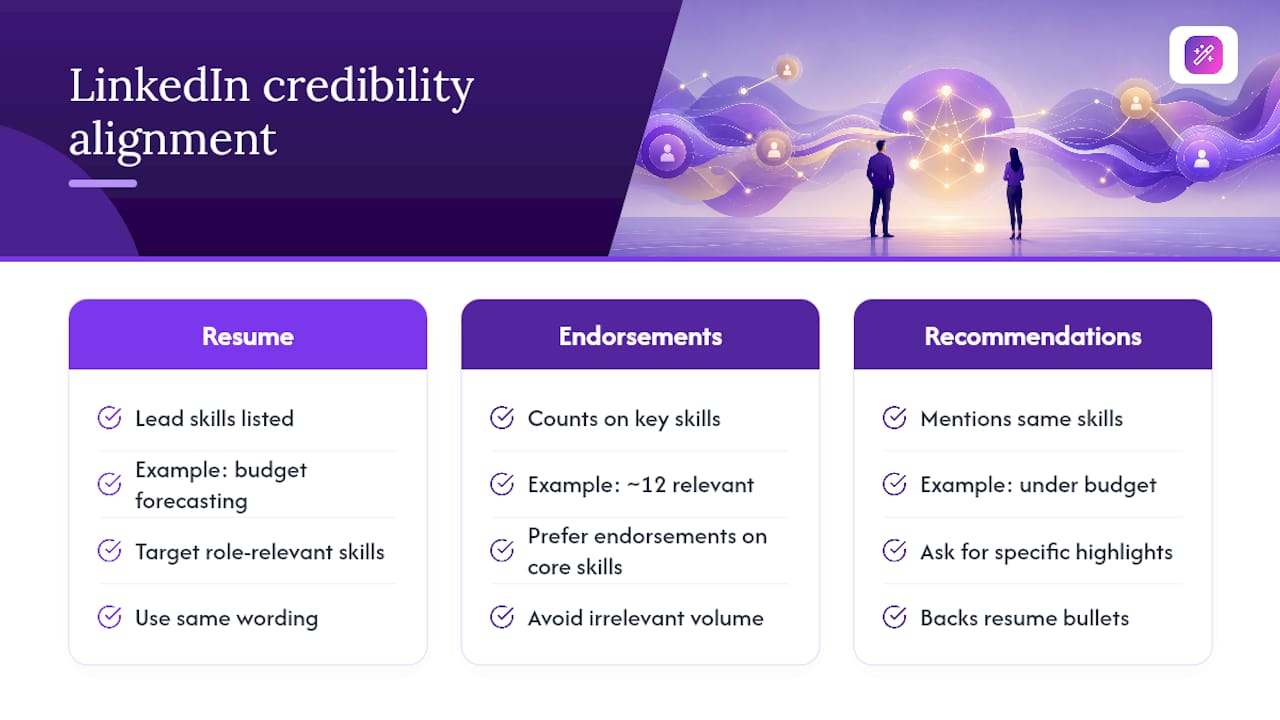
Endorsements and recommendations live on LinkedIn, but they can still shape how a recruiter reads your resume, even without appearing on the page itself. The connection is indirect but real: a recruiter who clicks through to your profile and finds a dozen relevant endorsements, plus two or three written recommendations from former managers, sees third-party confirmation of the exact skills your resume claims.
The strategy is to make sure the skills getting endorsed are the same ones your resume leads with. If your resume highlights “budget forecasting” and “cross-functional leadership” as core strengths, make sure those specific terms appear in your LinkedIn skills section and, ideally, in the language a recommender used when writing about you. A recommendation that says “James consistently delivered projects under budget” backs up a resume bullet about cost management far more convincingly than a generic “great to work with.”

Don’t chase endorsement volume for its own sake. Ten endorsements on skills that don’t matter to your target role are less useful than three on the skills that do. If you’re missing recommendations from recent roles, ask a former manager or close colleague directly, and give them a sentence or two of context about what you’d like highlighted. A specific ask produces a specific, useful recommendation almost every time.
Keeping Your Resume and LinkedIn Profile Consistent
Consistency between your resume and LinkedIn isn’t a nice-to-have. It’s the mechanism recruiters use to verify you’re telling the truth. Every job title, employment date, and company name should match exactly across both documents, down to whether you call a role “Senior Analyst” or “Sr. Analyst.”
Beyond the hard facts, tone and framing should align too. If your resume describes you as a data-driven operations lead, your LinkedIn headline and About section shouldn’t read like a generic customer-service bio. Recruiters notice when the voice shifts sharply between the two, and it raises quiet doubts about which version is the accurate one.
A practical way to stay aligned: whenever you update your resume for a new application, spend five minutes checking whether your LinkedIn profile needs the same update. This matters most for your most recent role, since that’s the section most likely to drift out of sync as your actual responsibilities evolve faster than your LinkedIn edits do. Treat both documents as one continuously updated record of your career rather than two separate projects you touch at different times.
A short note on why this checklist works
Alignment between your resume and LinkedIn isn’t about vanity. It’s about removing the split-second doubt a recruiter feels when two sources of truth about your career don’t match. Get the profile checklist right first, and the resume link stops being a risk and starts doing actual work for you, cutting down the back-and-forth verification that slows an application down. My own read on this, after looking at how these guides consistently converge on the same handful of rules, is that job seekers overcomplicate the LinkedIn question far more than the platform deserves. The fix is almost always smaller than people expect: a real photo, a specific headline, and matching dates.
— Andras
Get Your Resume and LinkedIn Aligned Without the Manual Cleanup
Matching your resume language to your LinkedIn profile by hand means rewriting the same bullet points twice and hoping you didn’t introduce a new inconsistency along the way. Easy-cv cuts that step down: its AI CV writer drafts headline and summary language you can carry over to LinkedIn almost as-is, so both documents end up saying the same thing in the same voice.
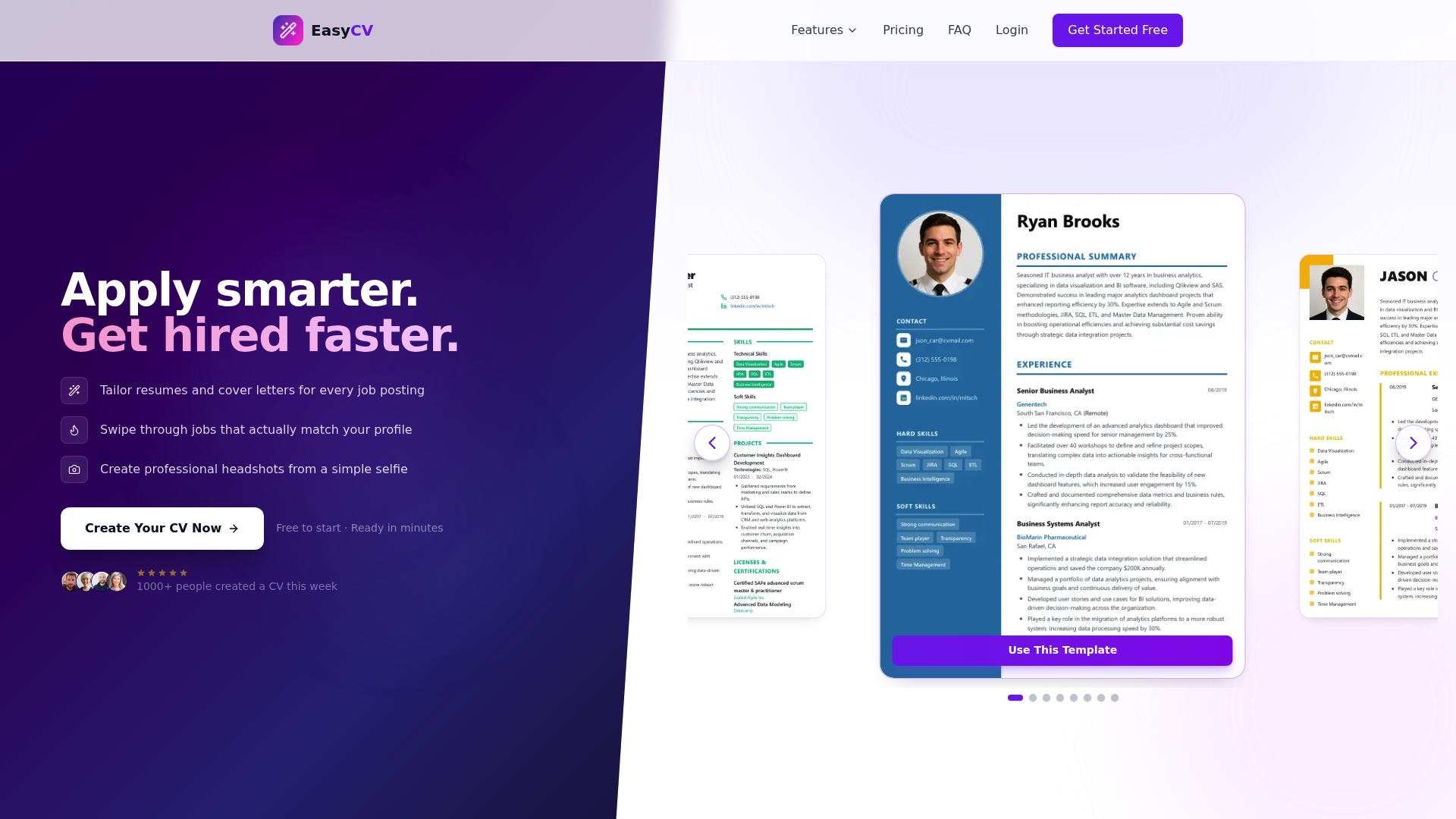
Beyond the writing itself, Easy-cv’s template library keeps your contact header formatted correctly by default, so your custom LinkedIn URL sits cleanly next to your phone and email without any manual spacing fixes. Once your resume is updated, the built-in job matcher shows you which open roles fit your profile best, so you’re not stuck rewriting a resume and then separately hunting for where to send it.
None of this replaces the profile work covered above. Easy-cv is an optional tool for speeding up the parts that eat the most time, not a requirement for getting your LinkedIn link resume-ready. If you want to see how the AI writer and templates work together, start with the free plan on Easy-cv’s homepage and update your resume before your next application.
Sources
- How to Add LinkedIn to Your Resume in 2026 Tips & Examples
- LinkedIn post: ‘One of the biggest mistakes I see on college …’