How to Export a Resume: Formats, Tools, and Tips
Exporting a resume is defined as saving or converting your resume file into a shareable format, such as PDF, DOCX, or TXT, so it can be submitted to employers and read correctly by applicant tracking systems. The format you choose and the method you use to export directly determine whether your resume survives ATS parsing or lands in a recruiter’s inbox looking broken. In 2026, with ATS software screening the majority of applications before a human ever sees them, getting this step right is not optional. Platforms like Microsoft Word, LinkedIn, and Google Docs each handle exports differently, and each produces files with different levels of ATS readability. This guide walks you through every decision point so your resume reaches recruiters intact.
How to export a resume: choosing the right file format first
The file format you export to is the single most consequential decision in the entire process. Three formats cover nearly every job application scenario: DOCX, PDF, and TXT.
| Format | Best use case | ATS compatibility | Recruiter readability |
|---|---|---|---|
| DOCX | Staffing agencies, editable submissions | Excellent (9/10) | High |
| PDF (text-based) | Direct employer applications | Very good (8/10) | Excellent |
| TXT | ATS testing, online form paste | Good for parsing | Low (no formatting) |

DOCX is the most reliable format for ATS compatibility, rated 9 out of 10 for parsing accuracy. That means the vast majority of ATS platforms can extract your name, skills, and work history from a DOCX without errors. Text-based PDF scores close behind at 8 out of 10, making it the right choice when you want to lock in your visual layout and send directly to a hiring manager.
TXT files strip all formatting and produce plain text. They are not suitable for submission, but they are genuinely useful for one specific task: testing whether your resume’s content is readable before you send it. Paste your resume text into a plain text editor and you will immediately see what an ATS actually processes.
One critical distinction separates useful PDFs from useless ones. A text-based PDF contains a real text layer that ATS software can read. An image-based PDF is essentially a photograph of your resume, and ATS systems cannot extract any data from it. Heavily designed templates built in tools like Canva or Adobe InDesign frequently produce image-based PDFs by default, which is why format choice and export method must be considered together.
How to export from Microsoft Word, LinkedIn, and Google Docs
Each platform has a correct export path and a common wrong one. Follow these steps precisely.
Exporting from Microsoft Word
- Open your resume document in Microsoft Word.
- Click File in the top menu, then select Export.
- Choose Create PDF/XPS Document, then click the Create PDF/XPS button.
- In the dialog box, select Standard (publishing online and printing) under “Optimize for.”
- Click Publish to save the file.
This method preserves hyperlinks and text layers, which ATS systems depend on for parsing. To save as DOCX, use File > Save As and select the .docx file type. Always keep the DOCX as your master file and export a fresh PDF each time you update your resume.
Pro Tip: Never use the browser’s or operating system’s “Print to PDF” option. This method flattens your document into an image layer, which destroys ATS readability.
Exporting from LinkedIn
LinkedIn’s built-in download function is convenient but produces a generic output. To access it, go to your LinkedIn profile, click the More button below your profile photo, and select Save to PDF. The resulting file pulls your profile data into a basic layout. LinkedIn’s PDF export should be treated as a starting draft, not a finished resume. Open it in Word or Google Docs, reformat it to match your target role, and re-export using the proper method described above.
Exporting from Google Docs
Google Docs produces clean, text-based files when you use File > Download and select either PDF Document (.pdf) or Microsoft Word (.docx). Google Docs exports parse well in ATS when the document uses simple formatting. Avoid multi-column layouts, text boxes, and decorative tables inside Google Docs, because these elements frequently shift position or break entirely during export. A single-column layout with standard heading styles is the safest approach.
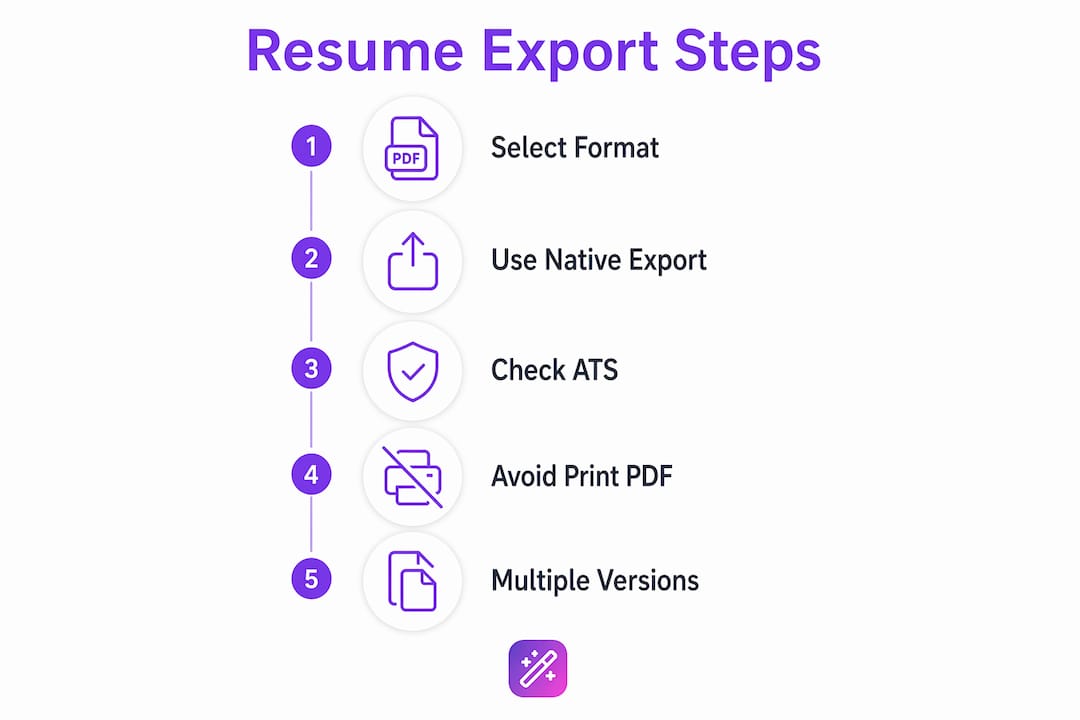
Pro Tip: After exporting any PDF, open it in a text editor like Notepad by changing the file extension from .pdf to .txt. If you can read your resume content clearly, the text layer is intact. If you see garbled characters or nothing at all, the file will likely fail ATS parsing.
Common export mistakes and how to fix them
The most damaging mistake job seekers make is using “Print to PDF.” Print to PDF flattens document layers, producing a file with no searchable text. ATS software reads it as a blank page. The fix is straightforward: always use the native Export or Save As PDF function inside Word or Google Docs.
The second most common problem comes from design-heavy templates. Tools that prioritize visual flair often embed text inside image layers or use non-standard fonts that do not transfer to PDF correctly. The result is a resume that looks polished on screen but fails completely when parsed. If you built your resume in a design tool, run the Notepad test described above before submitting a single application.
Here are the most frequent export errors and their solutions:
- Image-based PDF: Re-export using Word’s Export function or Google Docs’ Download as PDF. Avoid design tools that do not offer a text-layer PDF option.
- Broken formatting in DOCX: Simplify your formatting by removing text boxes, columns, and custom fonts. Use standard styles like Heading 1 and Normal.
- Large file size: PDFs over 5MB can be truncated by some ATS platforms. Compress images or remove graphics to reduce file size.
- Wrong file name: Name your file clearly, for example “Jane_Smith_Resume_2026.pdf.” Avoid generic names like “Resume_Final_v3.pdf” or special characters that some systems reject.
Always maintain one master DOCX file as your source of truth. Every PDF or TXT you send should be generated fresh from that master, never from a previously exported copy.
Pro Tip: Checking ATS readability before submission takes under two minutes and can be the difference between an interview and silence.
Why exporting your resume in multiple formats maximizes your chances
Having a single polished resume file is not enough. Different application scenarios demand different formats, and being unprepared costs you time and opportunities.
Staffing agencies request DOCX files so they can remove your contact information and reformat your resume for client presentation. Refusing to provide a DOCX, or not having one ready, signals inflexibility to the recruiter. PDF is the default for direct employer applications because it locks your layout and displays identically on every device. TXT is useful when you need to paste your resume content into an online application form or ATS portal that does not accept file uploads.
The practical benefits of maintaining all three formats include:
- Faster application turnaround. You can respond to any format request immediately without reformatting from scratch.
- Consistent content across versions. All formats derive from the same master DOCX, so your information stays accurate.
- ATS test capability. Your TXT version lets you verify content integrity before submitting to any platform.
Sending both DOCX and PDF to one recruiter without being asked can appear disorganized. The rule is simple: send PDF by default, switch to DOCX only when the employer or agency specifically requests it.
Some advanced job seekers also maintain a structured master file in a format like JSON, which enables quick regeneration of export formats for different applications and integrates with AI-assisted editing tools. This approach suits professionals who apply at high volume and need version control across multiple tailored resumes.
Key takeaways
Exporting a resume correctly requires choosing the right format for each context, using native export functions, and maintaining a single master DOCX as the source of all other versions.
| Point | Details |
|---|---|
| DOCX is the ATS standard | DOCX scores 9/10 for ATS parsing and is required by most staffing agencies. |
| Use native export functions | Word’s Export to PDF and Google Docs’ Download as PDF preserve text layers that ATS systems need. |
| Run the Notepad test | Rename your PDF to .txt and open it to confirm the text layer is intact before submitting. |
| Maintain a master DOCX | All PDF and TXT versions should be generated fresh from one editable source file. |
| Match format to context | Send PDF by default; switch to DOCX only when explicitly requested by the employer or agency. |
What I’ve learned from watching job seekers get this wrong
The most consistent mistake I see is treating resume export as an afterthought. Someone spends hours perfecting their content, then exports via Print to PDF in thirty seconds and wonders why they hear nothing back. The export method is part of the resume, not a formality at the end.
My strongest recommendation is to use built-in export functions exclusively. Third-party converters introduce unpredictable formatting shifts and occasionally strip text layers entirely. Word and Google Docs both produce reliable, ATS-readable PDFs when you use their native tools. There is no reason to add a conversion step.
The other thing I advocate strongly is keeping your master DOCX simple. Career advisors consistently stress that simple DOCX formatting prevents breakage when recruiters open files on different machines with different versions of Word. A resume with clean heading styles, no text boxes, and standard fonts will survive every environment. A beautifully designed resume that breaks on a recruiter’s laptop does not get you an interview.
Finally, build the habit of validating your export before every application batch. Open the PDF, run the Notepad test, check the file size, and confirm the file name is professional. This takes three minutes and eliminates the most common reasons a technically strong resume gets filtered out before a human reads it.
— Andras
Build and export your resume the right way with Easy-cv
If managing multiple resume formats and ATS checks sounds like more work than it should be, Easy-cv removes that friction entirely.
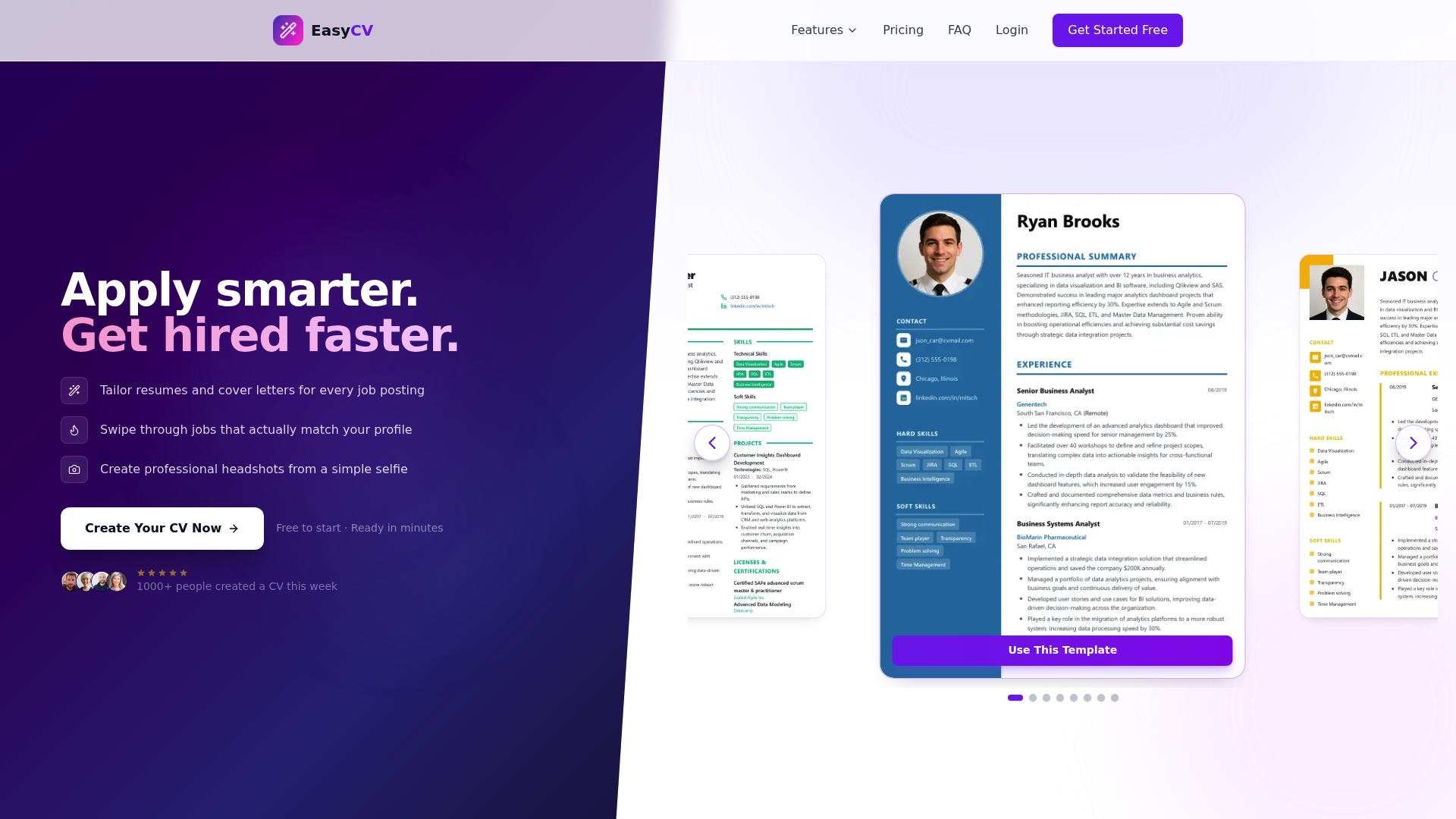
Easy-cv’s AI resume builder generates ATS-friendly resumes using modern templates designed to export cleanly to both PDF and DOCX. The platform’s export options are built around 2026 applicant tracking system requirements, so you are not guessing whether your file will parse correctly. The AI writing assistant tailors your content to each role, and the full feature set includes a job tracker, cover letter builder, and AI headshot generator. You can go from a blank resume to a submitted application faster than reformatting a broken PDF manually.
FAQ
What is a resume export?
A resume export is the process of saving your resume from an editing platform into a shareable file format such as PDF, DOCX, or TXT. The format and export method determine whether the file is readable by applicant tracking systems and hiring managers.
What is the best format to save a resume as?
PDF is the best default format for direct employer applications because it preserves your layout on any device. DOCX is preferred when staffing agencies or employers explicitly request an editable file.
Why does “Print to PDF” cause ATS problems?
Print to PDF flattens your document into an image layer with no searchable text, which ATS software reads as a blank file. Always use the native Export or Save As PDF function in Microsoft Word or Google Docs instead.
How do I check if my PDF resume is ATS-readable?
Rename your PDF file from .pdf to .txt and open it in Notepad or a plain text editor. If your resume content appears as legible text, the text layer is intact and the file will parse correctly in ATS.
Should I send both PDF and DOCX to the same recruiter?
No. Sending both formats without being asked can appear disorganized. Send PDF by default and provide DOCX only when the employer or agency specifically requests it.